
With version 2626 of our WHINT Integration Cockpit we have introduced an MCP server which allows you to connect from your LLM/AI agent. So far Read-Only. By default integration from Production environment are returned.
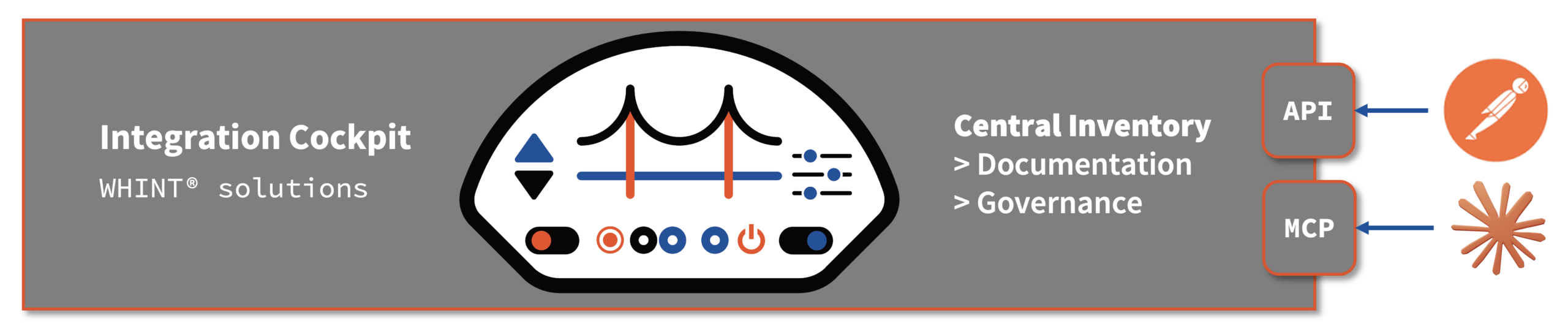
Here´s the list of MCP Tools released:
Inventory & landscape data
get_interfaces— search and filter integration interfaces (SAP IDocs, OData, RFC, XI/PI, BTP CI, MuleSoft APIs, Azure Logic Apps, ASAPIO, B2B, and more). Supports filtering by type, data source, environment, sender/receiver system, tags, properties, and anomalies. This is the primary workhorse tool.
get_end_to_end_integrations— retrieve E2E integration flows (sender → receiver paths composed of one or more inventory interfaces). Supports filtering by production flag, data source, system name, and nested interface type.
get_datasources— list and filter configured connectivity connections (SAP BTP, SAP ABAP, SAP ABAP BTP/Steampunk, SAP PO, MuleSoft Anypoint, Microsoft Azure, Solace, ASAPIO, Confluent Kafka, LeanIX, Confluence, and others). Used to look up data source IDs before drilling into interfaces.
get_systems— list participating systems in the landscape (senders, receivers, B2B partners, integration layer nodes). Used to discover system IDs before filtering interfaces or E2E flows.
get_environments— list configured environments (e.g. Production, Test, Dev). Used to look up environment names/IDs before filtering inventory by environment.
get_objects— list and search business/data objects from EA tools (LeanIX, HOPEX, LUY, BEE360) — entities like Customer, Sales Order, Product that are linked to interfaces.
Metadata & classification
get_tags— list tag categories and their allowed values (e.g. Region, Department, Cost Center). Used to discover tag value IDs before filtering interfaces or E2E flows by tag.
get_property_types— list custom property type definitions (e.g. Business Owner, Application ID). Used to discover property type IDs before fetching or filtering properties on interfaces, systems, or objects.
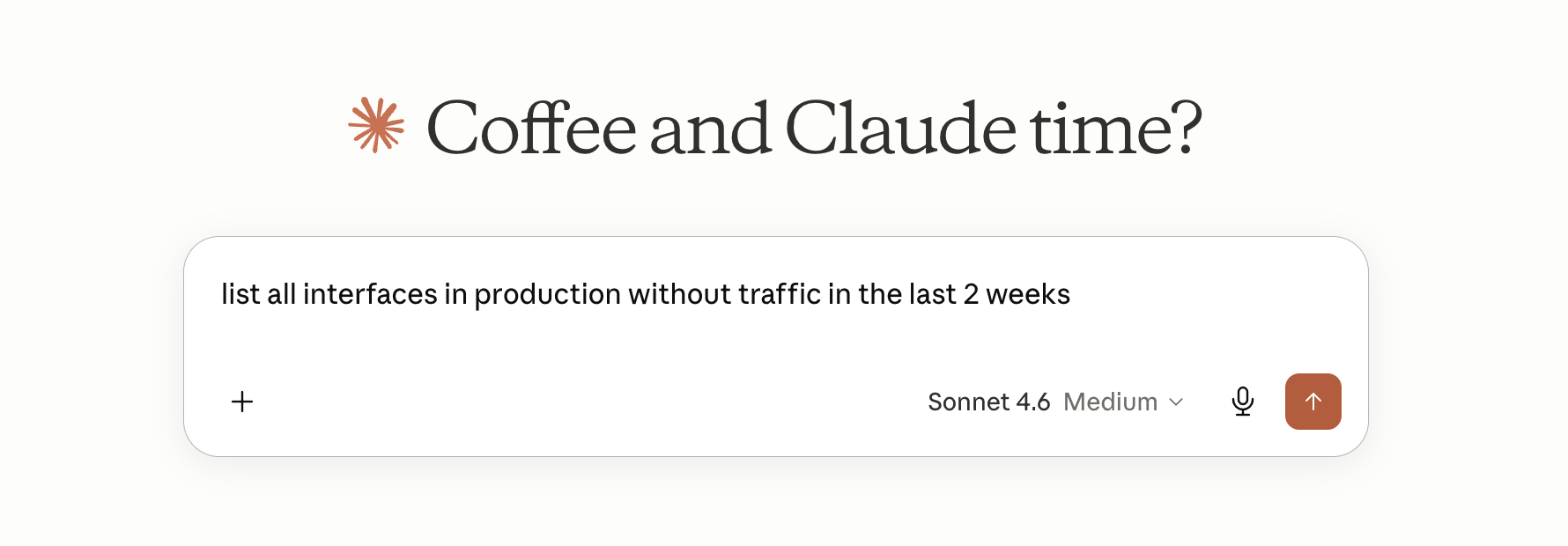
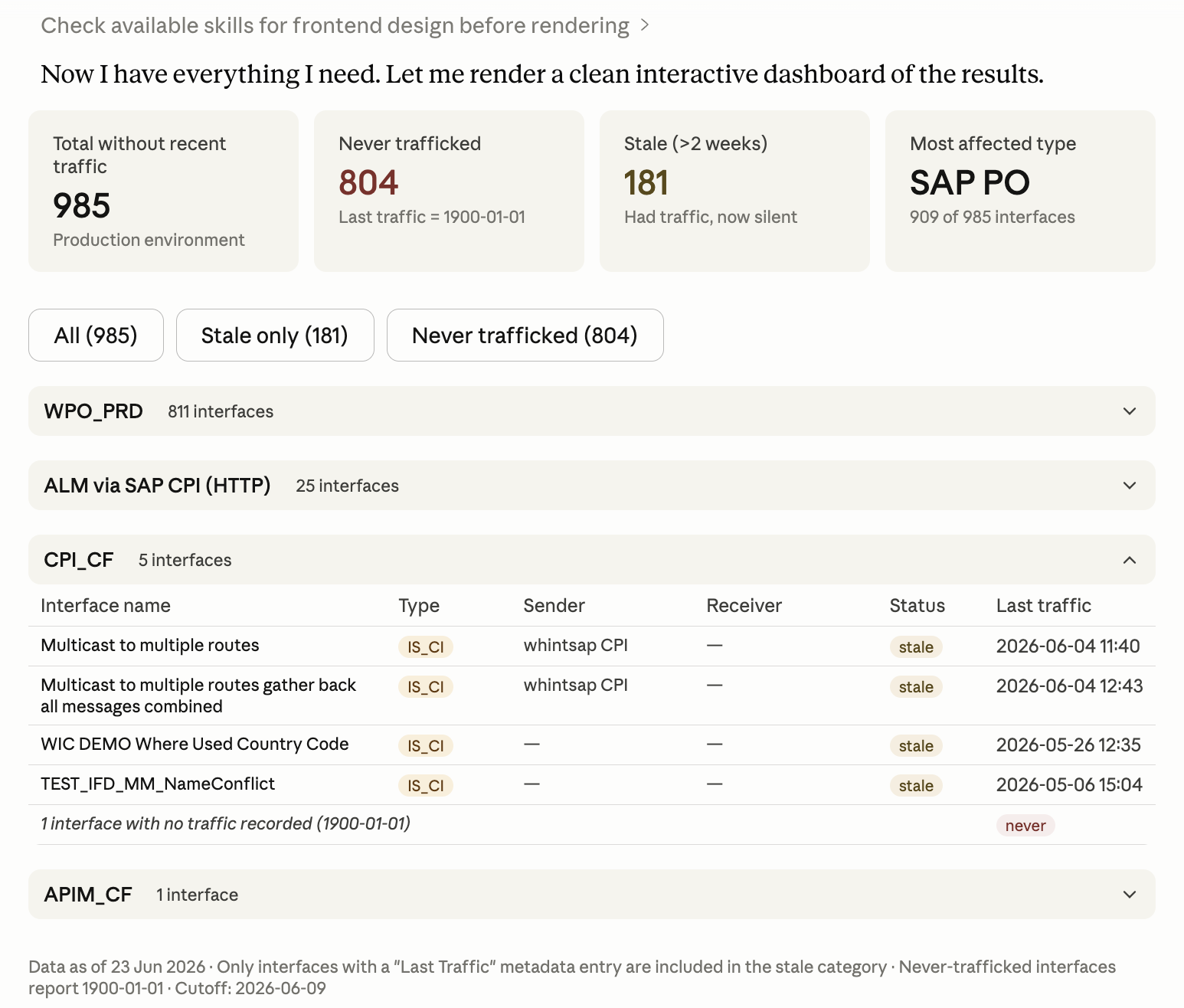
Sample prompt in Claude.ai
Configuration (Claude.AI Desktop)
- Make sure Node.js is installed on your machine — verify by running
node --versionin your terminal. If you do not have Node.js, you can follow following installation guide: Node.js — Download Node.js® - Create a data source (type API) in Integration Cockpit
- Get Access Token (Bearer)
- Open Developer Config in Claude Desktop
- Open the Claude Desktop application on your machine.
- At the bottom left of the window, click on your profile icon.
- From the menu that appears, select Settings.
- In the Settings window, scroll down in the left sidebar and click on Developer.
- Click the Edit Config button.
- Right-click on
claude_desktop_config.json.
- Open it with any text editor — for example Notepad (Windows), TextEdit (macOS), or VS Code.
- In the text editor, find the
mcpServerssection. If the file is empty or new, paste the entire block below. IfmcpServersalready exists with other entries, add only the"whint"block inside it.
ReplaceYOUR-TENANT-URLwith your WHINT tenant URL andYOUR_ACCESS_TOKENwith the token copied in Step 1. - Make sure the JSON is valid before saving. A missing comma or bracket will prevent the server from loading. If you are unsure, paste the contents into jsonlint.com to check.
Save the file.
- In the text editor, find the
- Restart Claude Desktop
{
  "mcpServers": {
    "whint": {
      "command": "npx",
      "args": [
        "-y",
        "mcp-remote",
        "https://<YOUR-TENANT-URL>/mcp",
        "--header",
        "Authorization:Bearer <YOUR_ACCESS_TOKEN>"
      ]
    }
  }
}